Layout
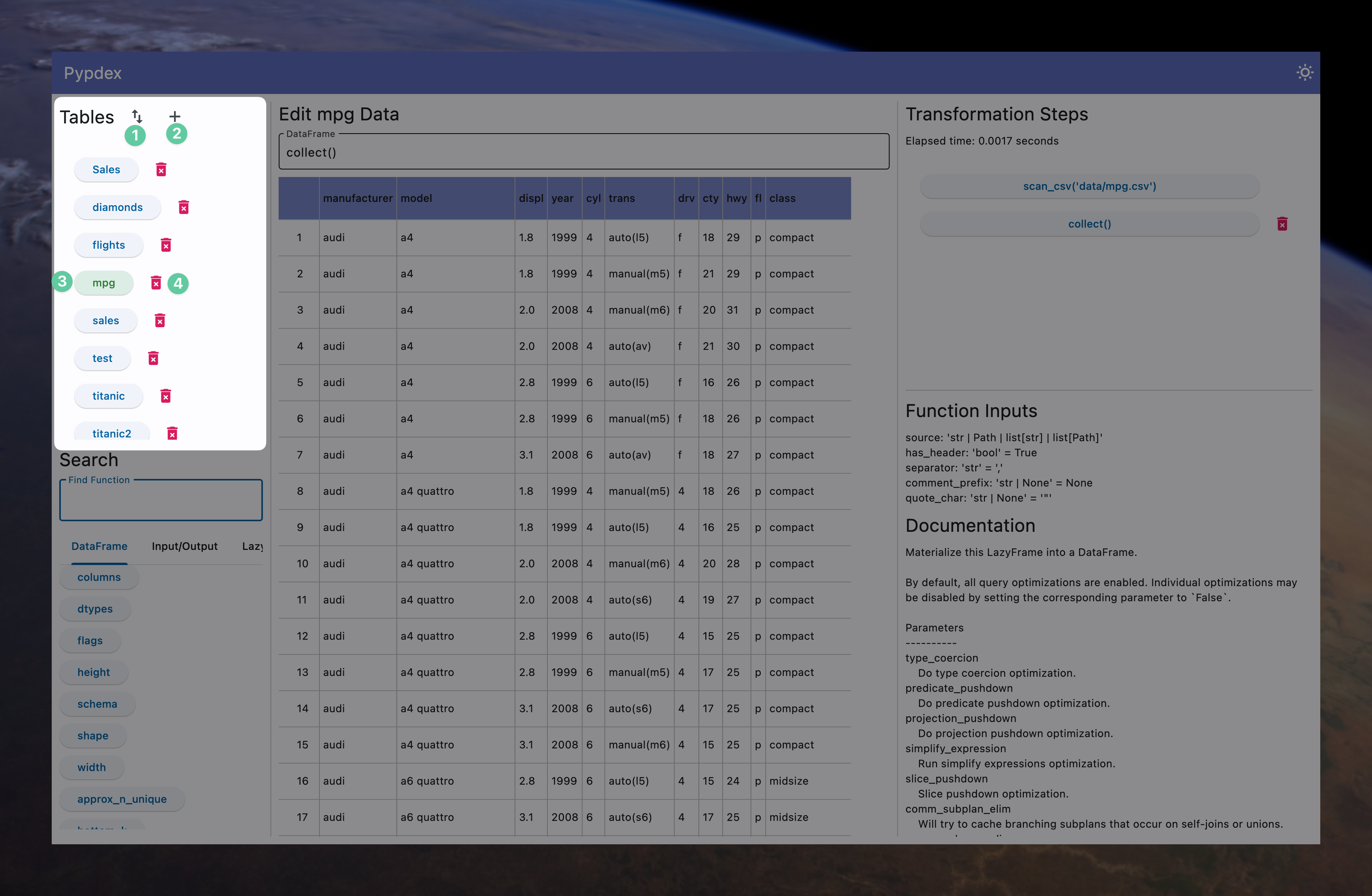
Tables
The tables section is where you can:
- Add data from external sources
- Add data from internal sources (data you've already loaded and transformed)
- Select which table you want to work on
- Delete a table by clicking on the red icon
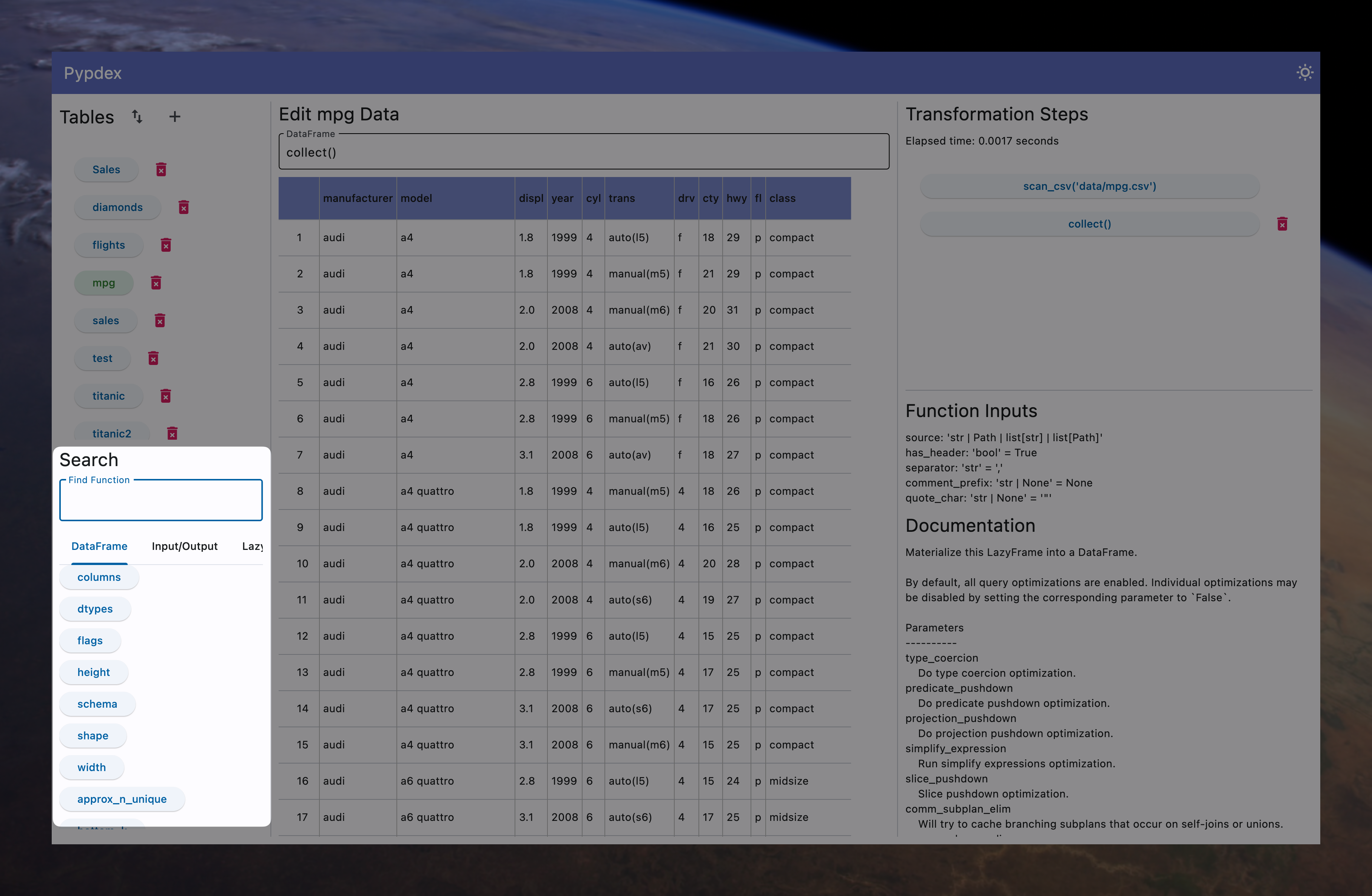
Function Search
The function search bar will filter down to the relevant functions based on what you type.
How to Search
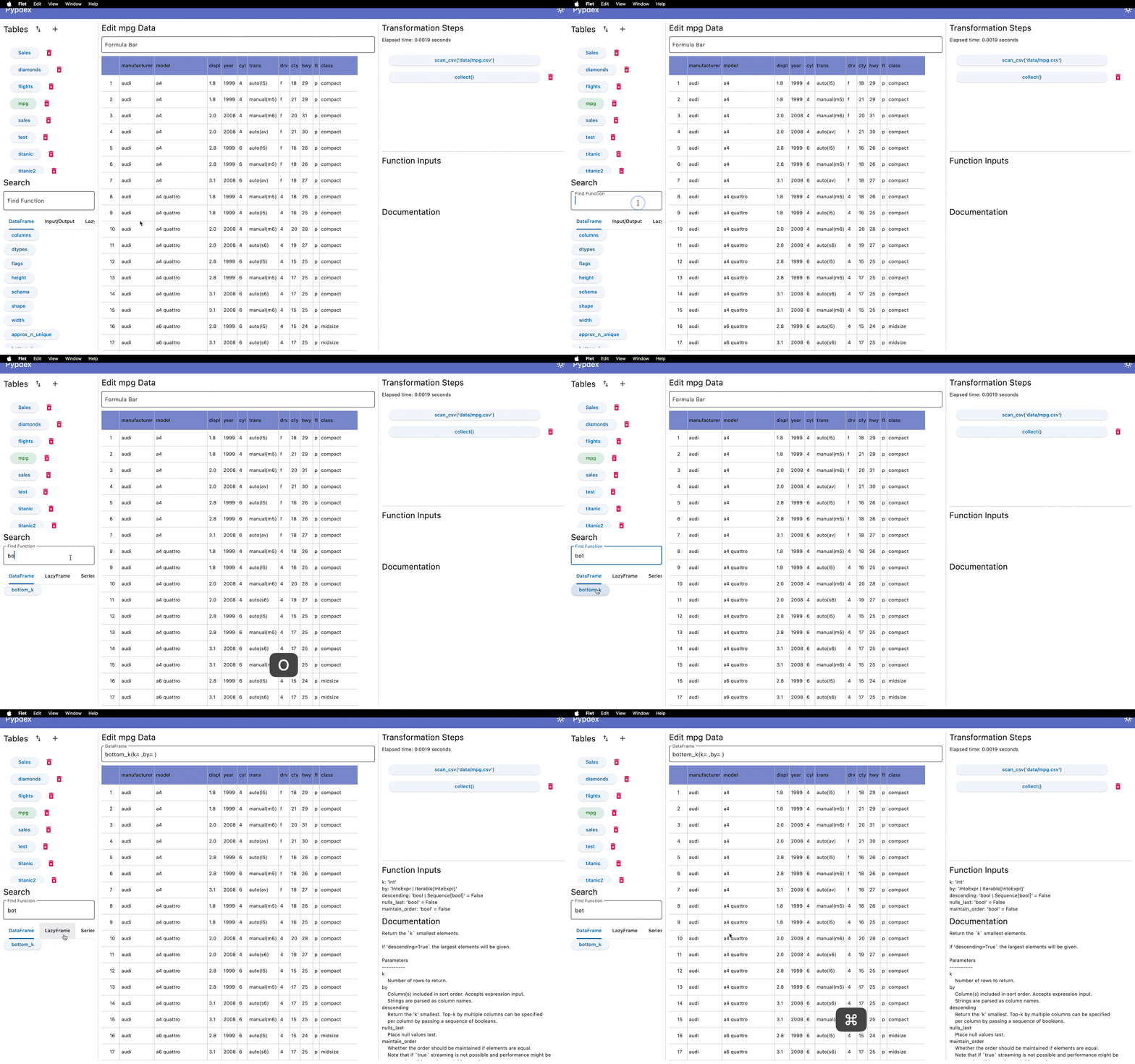
As shown in the above video, when you click a function button the following 3 things happen:
- The function gets added to the Formula Bar along with any required variables.
-
Note
A function may have multiple variables that are not required to run. All variables are listed in the Function Inputs and the Documentation sections.
-
-
The Function Inputs will be updated showing all available variables to edit and what type of information they expect (e.g text, integers, decimals, list of text, etc..)
-
The Documentation section will also be updated
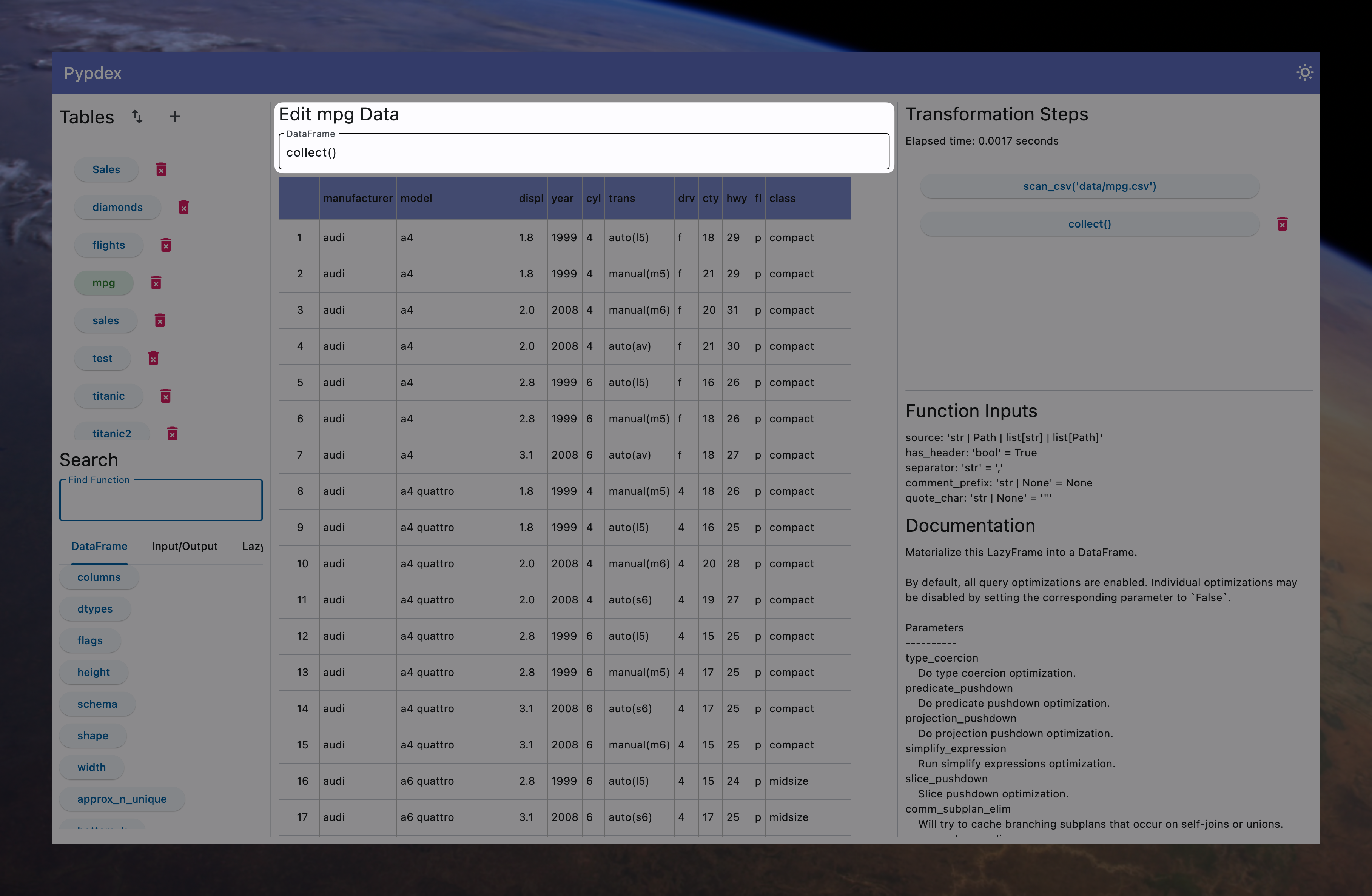
Formula Bar
The formula bar is where you can add/edit any functions or their variables before being added as a transformation step.
Data Output
This section is where all the results output. Normally you will see a table (as shown below).
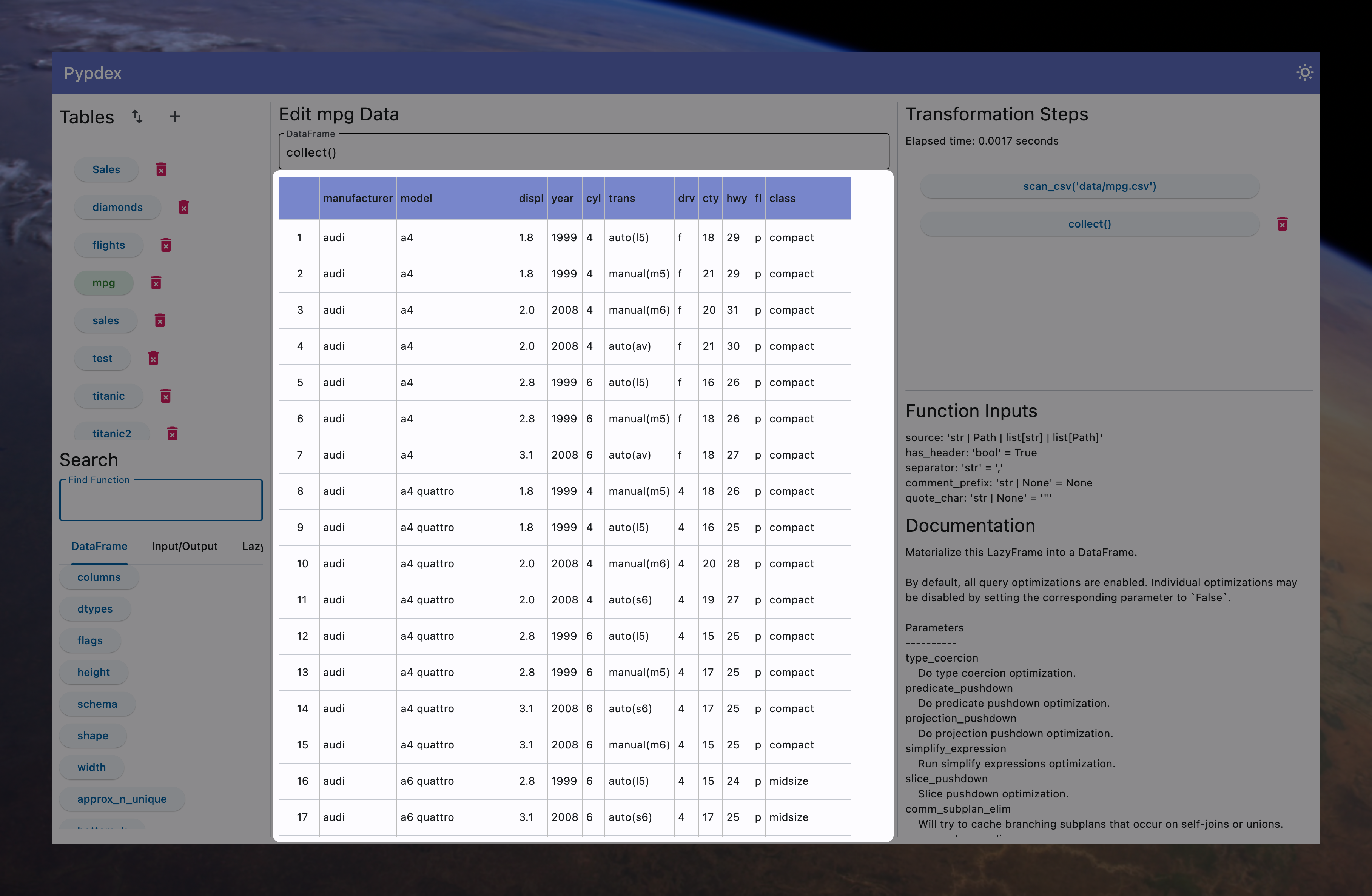
However there are a few circumstances where the output may be something different.
- Working with LazyFrames before you add the
collectfunction.- This will simply output the text of the query that is being created in the background
-
The result of the function is something other than a table
- There are several functions whose output is either a number, text or an array
- For example: If you add the
columnsfunction to the Transformation Steps, then it will return an array of the column names. Below is an what the output would look like: 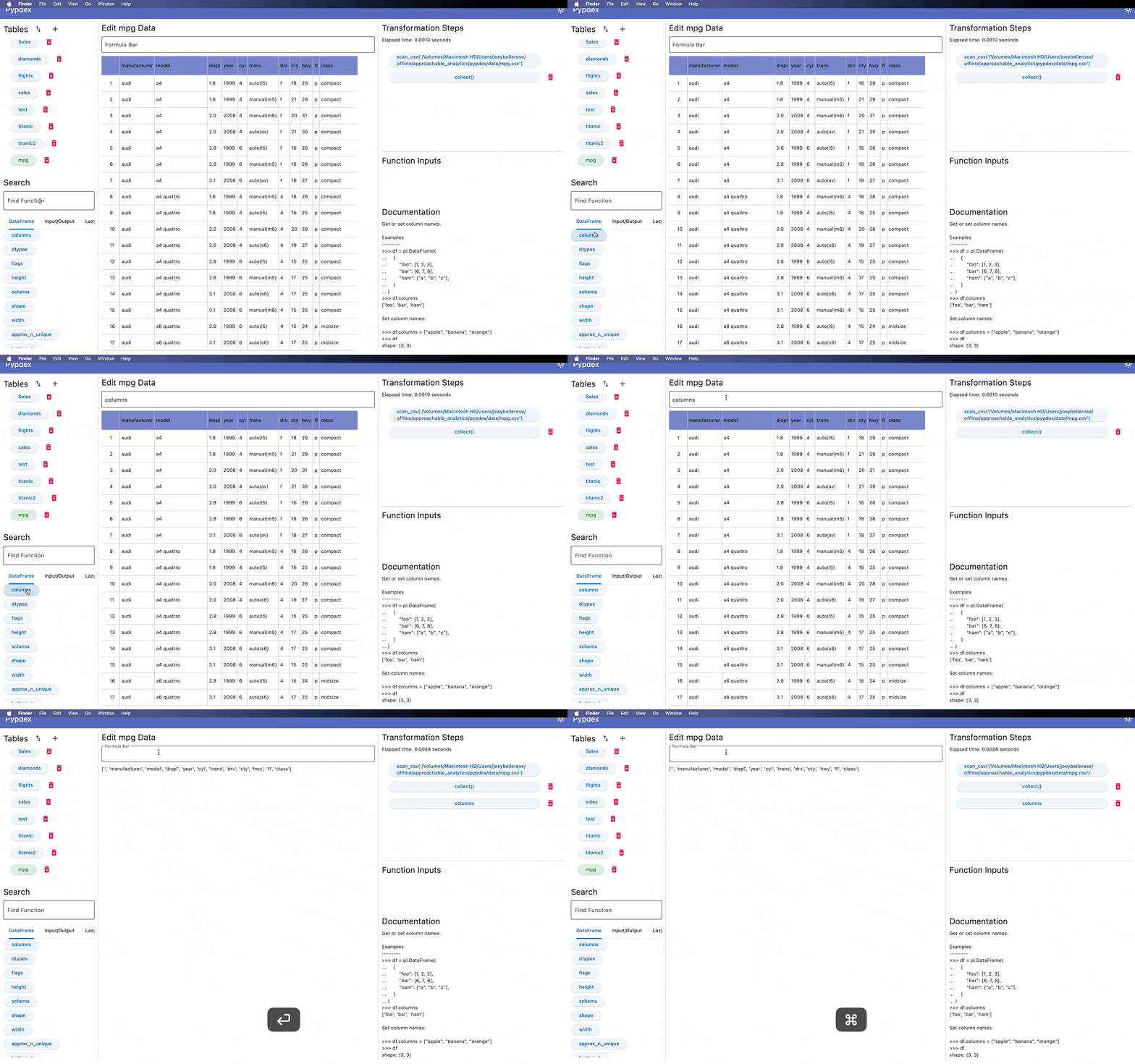
-
You will see an error notifying you something is wrong if you happen to enter something incorrect
- For instance, if you happened to spell
columnswrong and accidentally wrotecolumnsss, then you would see the following error notifying you that the function doesn't exist. 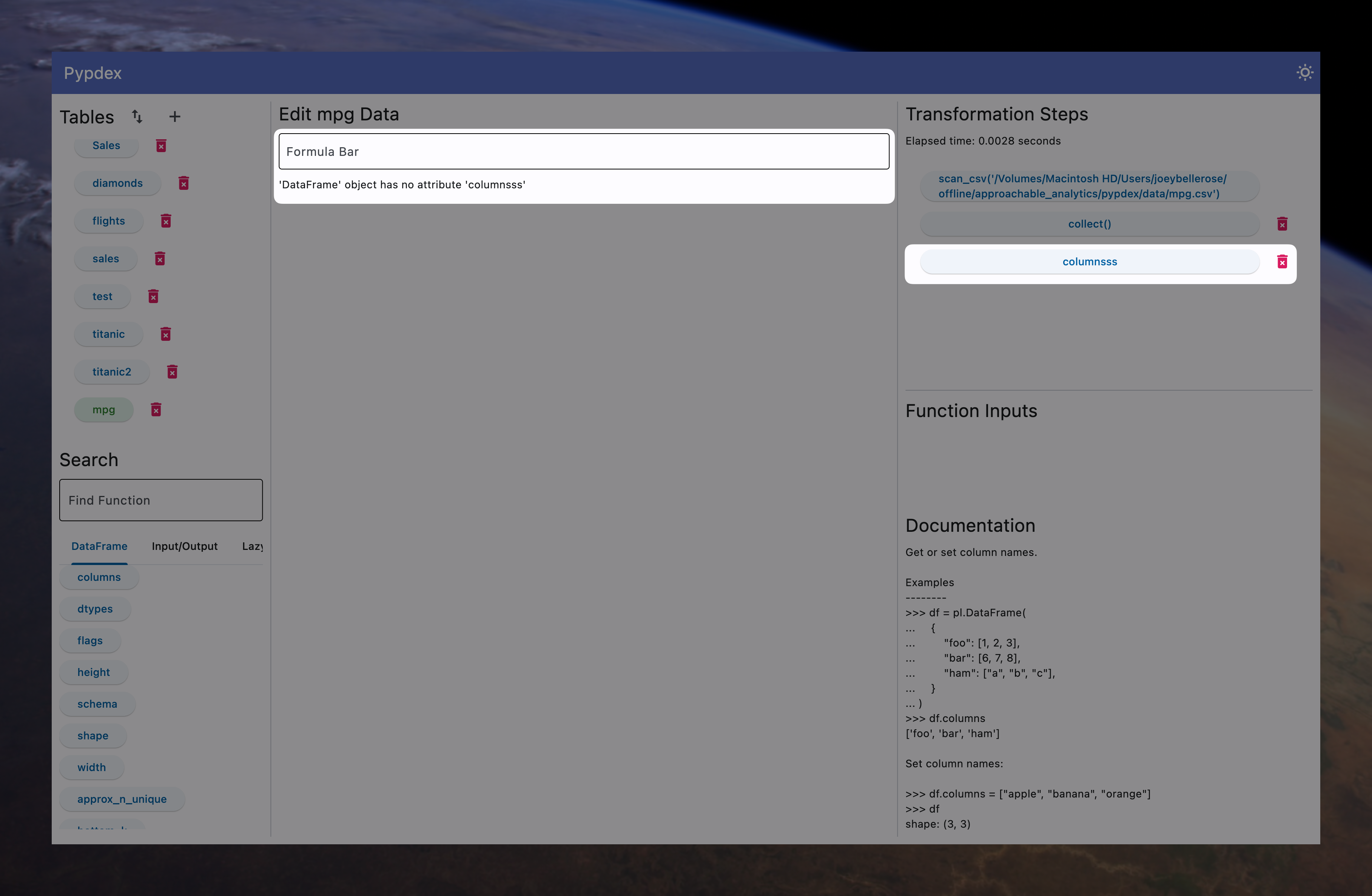
- For instance, if you happened to spell
Transformation Steps
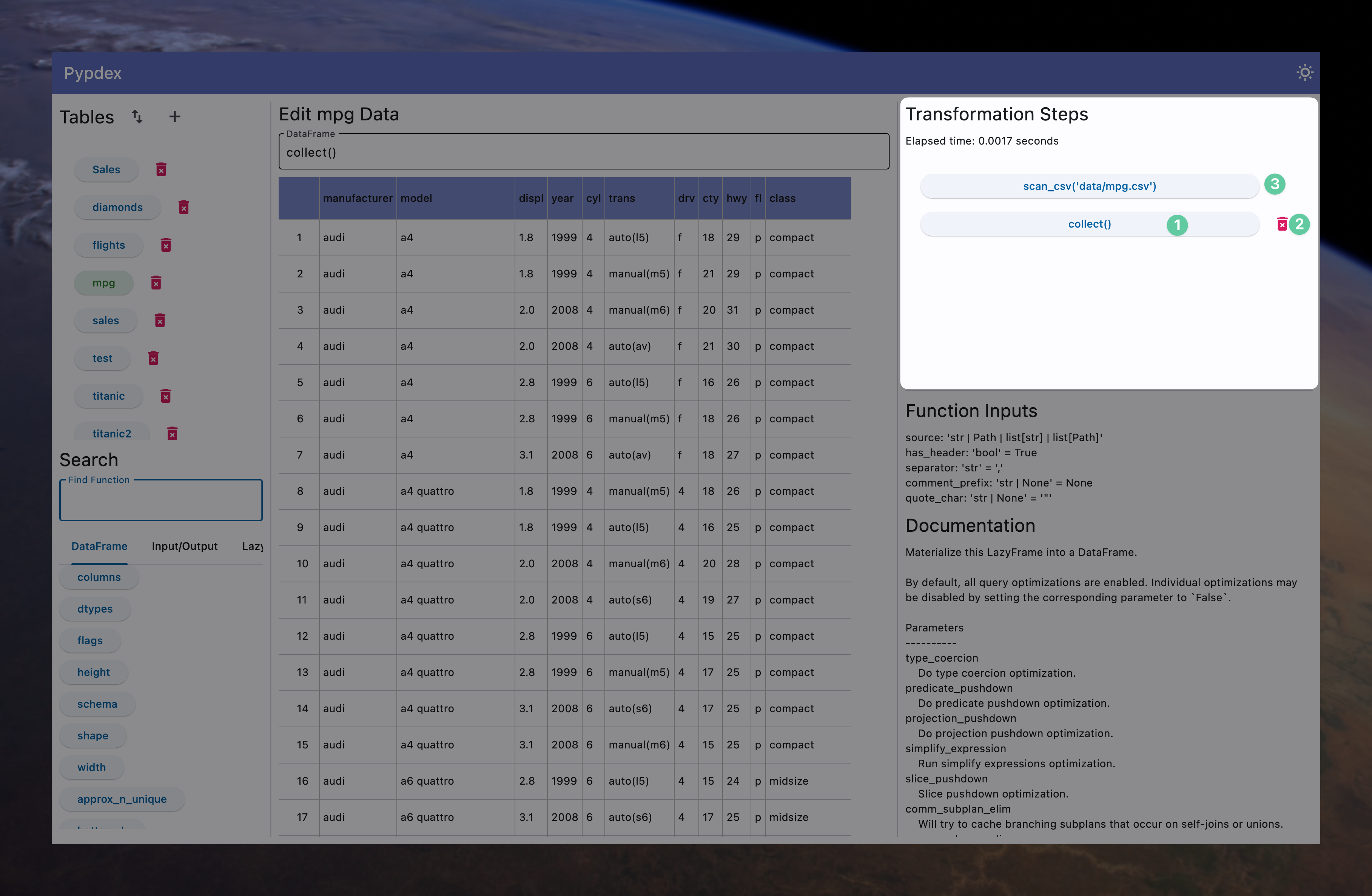
This section of Pypdex shows you all the transformation steps you have made so far with regards to the current table that is selected.
Here you can:
- Edit existing steps by clicking on it
- Delete a step by clicking the red icon
Note
The initial step for any table always has to deal with reading in or combining data. Because of that, you cannot delete this step as it would make the table function incorrectly and cause errors. To get the same result, simply delete the table in the Tables section.
Function Inputs
Function inputs are the variables you can edit when creating the function. This section lets you know the names of the variables that exist and what kind of information they expect.
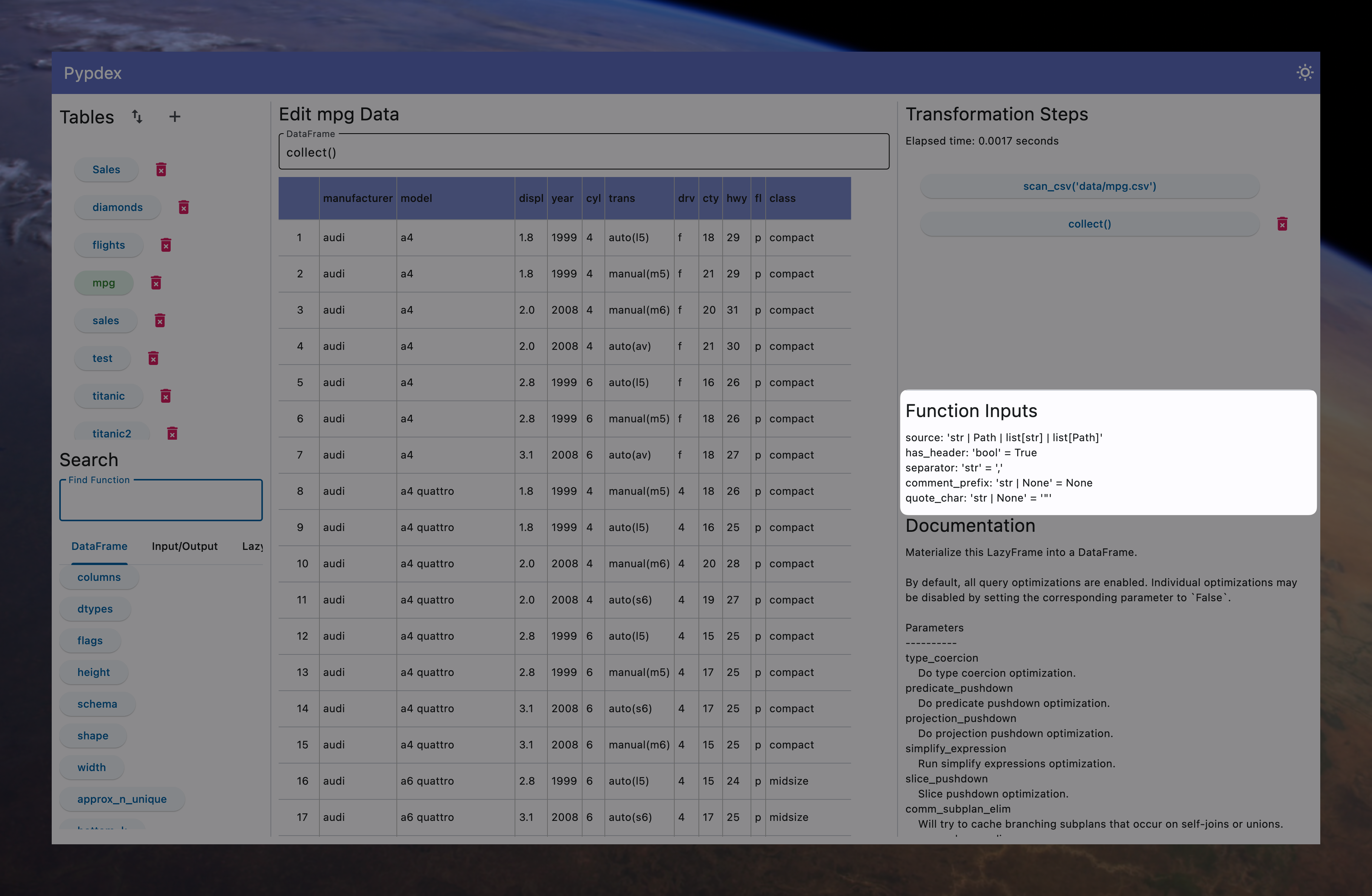
For example, the scan_csv function has a variable called source which expects a string (text) of the file path to the csv you wish to read in.
Note
As of now, Pypdex uses the types of the underlying Python package Polars to display this information. In the future these types will be translated to something that more closely aligns with Excel and spreadsheets in general.
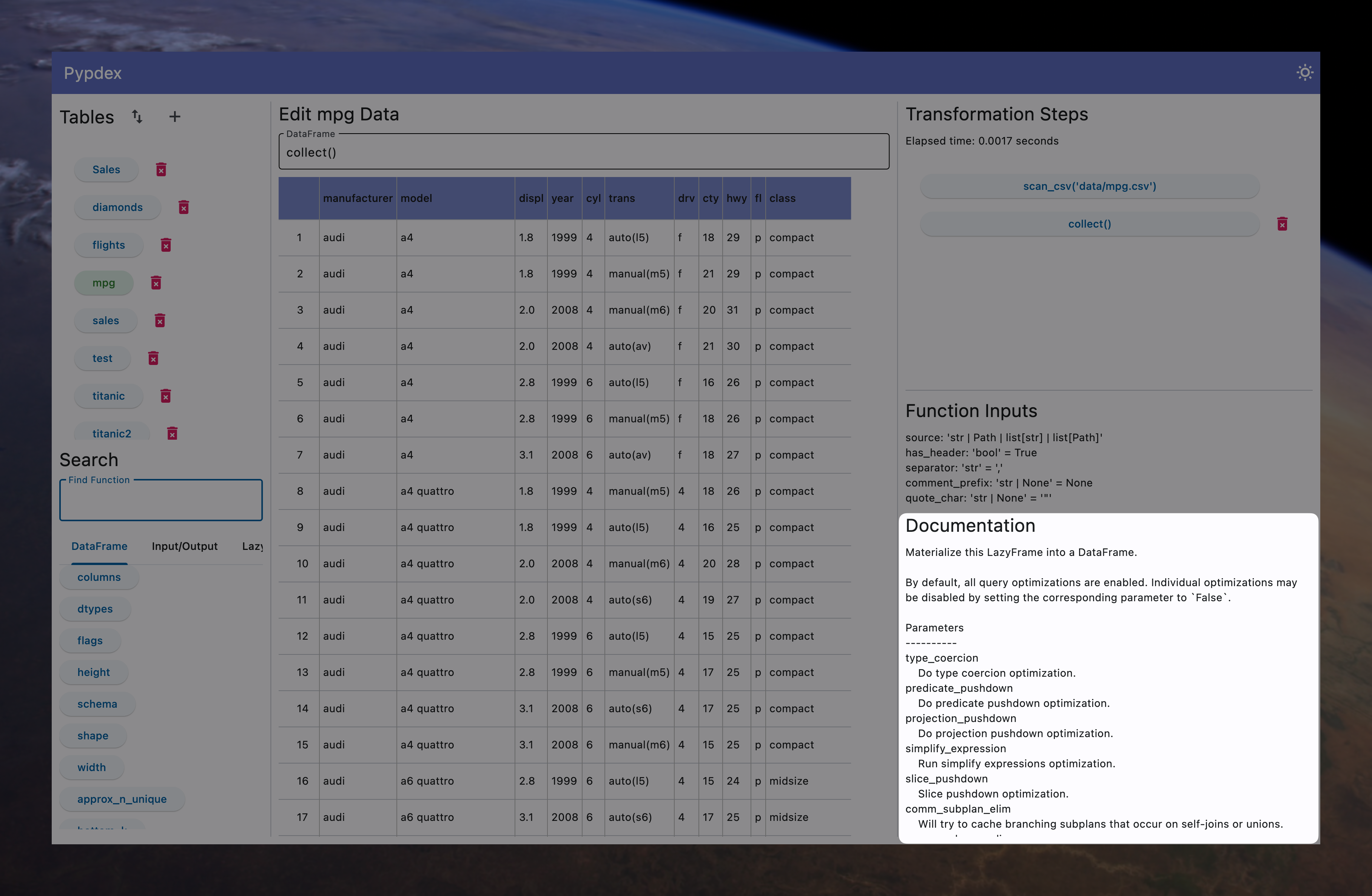
Documentation
As you scroll through the documentation section, you will see it provides descriptions of
- What the function does
- Descriptions of each variable that the function can use
- Examples of how the function can be used
Note
As of now, Pypdex uses the examples of the underlying Python package Polars to display this information. In the future these examples will be translated to something that more closely aligns with Excel and spreadsheets in general.